Quick Answer
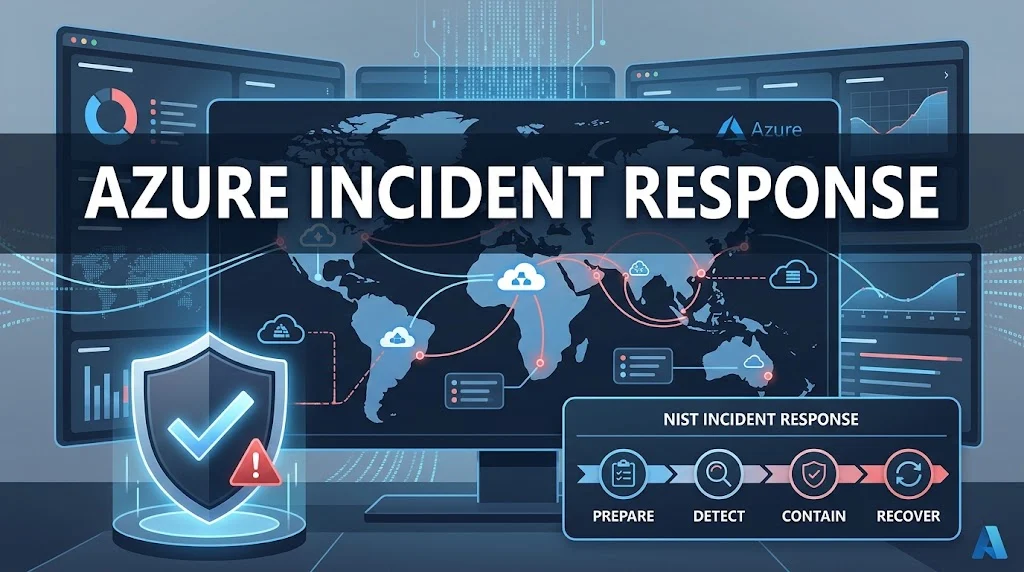
Azure incident response is the practice of investigating and remediating active attacks in your Microsoft cloud environment. It follows the NIST SP 800-61 phases: preparation, detection and analysis, containment and recovery, and post-incident activity. Azure provides native tools like Microsoft Defender XDR and Microsoft Sentinel to automate and accelerate each phase.
An attacker gains access to your Azure environment at 2 a.m. They move laterally, escalate privileges, and begin exfiltrating data. By the time your team notices, the damage is already spreading.
How quickly you detect, contain, and recover depends entirely on how well you prepared before the incident occurred. Azure incident response is not a plan you write after an attack. It is a capability you build beforehand.
Cloud environments change the rules. The shared responsibility model means some controls belong to Microsoft and some belong to you. Investigation tools are cloud-native, not on-premises. Evidence lives in logs and APIs, not hard drives. Traditional incident response plans, built for data centers, often fail in Azure because they ignore these differences.
This guide covers the full incident response lifecycle in Azure. You will learn how to prepare, detect, contain, recover, and learn from incidents. You will also find communication templates and copy-ready replies for your team.
What Is Azure Incident Response?
Azure incident response is the structured process of identifying, investigating, and remediating security incidents in Microsoft Azure. It aligns with the NIST SP 800-61 framework, which defines four phases: preparation, detection and analysis, containment and recovery, and post-incident activities.
The goal is simple: minimize the time an attacker can operate inside your environment. That window, often called dwell time, determines the scope of the damage. A response that takes hours instead of days can mean the difference between a contained breach and a full-scale data loss event.
Azure-specific incident response differs from traditional incident response in three key ways.
Shared responsibility. Microsoft secures the cloud infrastructure. You secure what you put in the cloud. The boundary depends on whether you use IaaS, PaaS, or SaaS services. Your incident response plan must clearly define these responsibilities.
Cloud-native investigation. Evidence is collected from Azure Monitor logs, Microsoft Entra audit logs, and NSG flow logs. Traditional forensic tools designed for physical servers may not work. You need cloud-aware investigation skills and tools.
API-based evidence collection. Azure resources are managed through APIs. Snapshots, memory dumps, and network captures are performed through Azure services, not by physically accessing a machine.
Understanding these differences is the foundation of effective Azure incident response.
Preparing for Azure Incidents
Preparation is the most important phase. Organizations that skip it discover gaps during real incidents, when the cost of failure is highest.
Develop an Azure-Specific Incident Response Plan
Your plan should cover the full incident lifecycle and address Azure-specific considerations. At a minimum, it should include:
- Clear delineation of responsibilities between Microsoft and your organization for IaaS, PaaS, and SaaS services
- Cloud-native investigation procedures using Azure Monitor logs, Microsoft Entra audit logs, and NSG flow logs
- Procedures for VM snapshots, memory dumps, and network packet captures
- Microsoft collaboration processes, including how to engage Microsoft Support and the Microsoft Security Response Center (MSRC)
A generic incident response plan written for on-premises infrastructure will not work. Customize it for the Azure services and applications you actually use.
Configure Security Contacts
Microsoft needs to know who to contact if it discovers unauthorized access to your data. Configure security contacts in Microsoft Defender for Cloud.
Include 24/7 reachable primary contacts, backup contacts for global coverage, and role-based contacts for different incident types.
Without accurate security contacts, Microsoft cannot notify you of incidents that affect your environment. This is a basic but critical preparation step.
Implement Automated Notification Workflows
Manual notification introduces delays. In a security incident, delays cost money and data.
Use Azure Logic Apps and Microsoft Sentinel playbooks to automatically route alerts to the appropriate stakeholders. Configure escalation procedures with time-based triggers for unacknowledged critical incidents.
Automation ensures that the right people are notified within seconds, not minutes or hours.
Test Your Response Procedures
Organizations discover gaps during actual incidents rather than controlled testing. Conduct quarterly tabletop exercises using realistic attack scenarios: ransomware, data exfiltration, and insider threats.
Testing reveals what works and what fails. It also builds muscle memory. When a real incident occurs, your team responds faster because they have practiced the steps before.
Detecting and Analyzing Azure Incidents
Detection is the phase where you identify that something is wrong. Analysis is where you determine what happened and how far it spread.
Enable Unified Threat Detection
Deploy Microsoft Defender XDR as your primary unified security platform. Defender XDR automatically correlates alerts from endpoints, identities, email, and cloud apps into unified incidents. It provides automated investigation and response at machine speed.
This correlation is critical. A single alert may look minor. Correlated alerts across multiple sources often reveal a coordinated attack.
Centralize Log Collection and Analysis
Effective investigation depends on comprehensive log data. Without it, you cannot reconstruct what happened.
Implement centralized log analysis through Azure Monitor, Microsoft Sentinel, and Azure Log Analytics. Collect logs from across your Azure services and workloads. This provides the data needed for effective investigation and forensic analysis.
Key log sources include:
- Azure Activity Log for resource management operations
- Microsoft Entra ID audit logs for identity and access events
- NSG flow logs for network traffic
- Application logs for custom telemetry
Investigate with Cloud-Native Tools
Cloud-native investigation uses Azure Monitor logs, Microsoft Entra audit logs, and NSG flow logs. These tools let you query data, correlate events, and reconstruct an attack timeline without accessing physical hardware.
Use KQL (Kusto Query Language) to build targeted queries against Azure Monitor tables. Focus on the affected resources, the incident timeframe, and the specific symptoms you are investigating.
Azure Incident Response: Replies for Detection and Analysis
Seeing a spike in failed sign-ins from a single IP. Pulling Entra ID audit logs to investigate.
Use this when you suspect a password spray or brute force attack.
Meaning: The team is aware and investigation is underway.
Defender XDR has correlated alerts across identity and endpoint. Reviewing the unified incident.
Use this when multiple alerts are linked to the same attack.
Meaning: The detection system is working as intended.
NSG flow logs show unusual outbound traffic to an unknown IP. Checking for data exfiltration.
Use this when you suspect data is leaving your environment.
Meaning: The investigation is focused on network egress.
Azure Activity Log shows a new role assignment outside change window. Verifying legitimacy.
Use this when a privileged action occurred unexpectedly.
Meaning: The team is checking whether the change was authorized.
Containing and Recovering from Azure Incidents
Containment stops the attack from spreading. Recovery restores normal operations.
Contain the Incident
Containment actions depend on the type of incident. Common steps include:
- Isolating compromised virtual machines by modifying network security groups
- Revoking compromised credentials and sessions
- Disabling compromised accounts
- Blocking malicious IP addresses at the network perimeter
- Isolating affected resources from the rest of the environment
Use Microsoft Sentinel playbooks and Azure Logic Apps to automate containment actions where possible. Automation reduces response time and ensures consistency.
Preserve Evidence
Before you remediate, preserve evidence. In Azure, this means:
- Taking VM snapshots for later forensic analysis
- Capturing memory dumps if the incident involves a running process
- Exporting relevant logs to immutable storage
- Documenting the timeline of events
Evidence preservation is essential for root cause analysis, legal proceedings, and regulatory compliance. Destroying evidence, even inadvertently, can have serious consequences.
Recover Operations
Recovery means restoring affected systems and data. Steps include:
- Restoring virtual machines from known-good snapshots
- Rebuilding compromised resources from infrastructure-as-code templates
- Rotating credentials and secrets
- Verifying that the threat has been fully eradicated before returning to production
- Monitoring for signs of re-infection
Do not rush recovery. Returning a compromised system to production before the threat is eliminated invites a second incident.
Azure Incident Response: Replies for Containment and Recovery
Compromised VM isolated. NSG rules updated to block all traffic except management access.
Use this when containing a compromised virtual machine.
Meaning: The threat is contained and the team is preventing lateral movement.
Compromised user account disabled. All active sessions revoked.
Use this when an account has been taken over.
Meaning: The attacker’s access has been cut off.
Snapshot taken of affected VM for forensic analysis. Recovery from clean backup in progress.
Use this when preserving evidence while restoring service.
Meaning: Both investigation and recovery are underway.
Malicious IP blocked at the firewall. Monitoring for related activity.
Use this when blocking a known attacker.
Meaning: The immediate threat is blocked, but the team remains vigilant.
Restoring from backup completed. Verifying system integrity before returning to production.
Use this when recovering from a destructive incident.
Meaning: Recovery is in progress but not yet complete.
Post-Incident Activities in Azure
Post-incident activities are where organizations learn and improve. Skipping this phase means repeating the same mistakes.
Conduct a Lessons Learned Review
After the incident is resolved, gather the response team and review what happened. Cover:
- Incident timeline and root cause
- What worked well in the response
- What failed or caused delays
- Gaps in detection, tooling, or process
- Action items to prevent recurrence
Document the review and assign owners to each action item. A lessons learned review without follow-up is just a meeting.
Update Your Incident Response Plan
Use the findings from the review to update your plan. Add new attack scenarios, refine playbooks, and adjust escalation procedures. The plan should evolve with your environment and threat landscape.
Preserve Evidence for Compliance
Many industries have regulatory requirements for incident documentation and evidence preservation. HIPAA, PCI-DSS, GDPR, and SOX all impose reporting timelines and record-keeping obligations.
Store evidence in immutable cloud storage. Document your chain of custody. Ensure that your post-incident process satisfies both internal and regulatory requirements.
Azure Incident Response: Replies for Post-Incident
Post-incident review scheduled for tomorrow. Action items will be assigned and tracked.
Use this after resolving an incident.
Meaning: The team is committed to learning from the event.
Root cause identified: misconfigured NSG allowed unauthorized access. Fix deployed.
Use this when the cause is understood.
Meaning: The vulnerability has been addressed.
Evidence exported to immutable storage for compliance. Chain of custody documented.
Use this when regulatory requirements apply.
Meaning: The organization is meeting its legal obligations.
Updated runbook with new containment steps. Tabletop exercise scheduled next month.
Use this when improving response procedures.
Meaning: Preparation is improving based on real experience.
Azure Incident Response Communication Templates
Clear communication during an incident is critical. These templates are ready to use and customize.
Internal Status Update
text
[INCIDENT] Severity {n} - {Service Name}
Status: Investigating / Mitigating / Resolved
Impact: {description of user impact}
Current Action: {what team is doing}
Next Update: {time}
This template provides a consistent structure for internal updates.
Customer Communication
text
We are aware of an issue affecting {service}.
Our team is actively investigating and working to resolve it.
We will provide an update by {time}.
This template informs customers without over-promising or revealing sensitive details.
Sentinel Incident Email Report
Use Azure Logic Apps to automatically send formatted incident reports to stakeholders. The template includes incident details, tactics, affected entities, and alert tables.
Escalation Message
text
Incident {ID} has not been acknowledged within {time}.
Escalating to {contact} for immediate action.
Use this when automated escalation triggers for unacknowledged critical incidents.
Common Mistakes in Azure Incident Response
Even experienced teams make these mistakes. Avoiding them improves outcomes.
Using an on-premises plan for a cloud environment. Traditional plans ignore the shared responsibility model, cloud-native investigation tools, and API-based evidence collection. They fail in Azure.
Skipping preparation. Organizations that do not test their plans discover gaps during real incidents. Quarterly tabletop exercises prevent this.
Manual notification. Relying on humans to notify stakeholders introduces delays. Automate notification workflows with Logic Apps and Sentinel playbooks.
Forgetting to configure security contacts. If Microsoft cannot reach you, you may not learn about incidents affecting your data until it is too late.
Poor log collection. Without comprehensive logs, you cannot investigate effectively. Centralize logs in Azure Monitor and Log Analytics.
Skipping evidence preservation. Failing to take snapshots and export logs before remediation destroys forensic evidence. Preserve first, then fix.
Not conducting post-incident reviews. Incidents that are not analyzed are incidents that will happen again. Document lessons learned and assign action items.
Assuming Microsoft handles everything. The shared responsibility model means you are responsible for security in the cloud, not just of the cloud. Know where your responsibility begins and ends.
Azure Incident Response: Frequently Asked Questions
What is the first step in Azure incident response?
Preparation. Before an incident occurs, develop an Azure-specific incident response plan, configure security contacts, implement automated notification workflows, and test your procedures with tabletop exercises.
How does Azure incident response differ from traditional incident response?
Azure incident response must account for the shared responsibility model, cloud-native investigation tools, and API-based evidence collection. Traditional on-premises plans do not address these factors.
What Azure tools are used for incident response?
Key tools include Microsoft Defender XDR for unified threat detection, Microsoft Sentinel for SIEM and SOAR, Azure Monitor and Log Analytics for centralized logging, and Azure Logic Apps for workflow automation.
What is the NIST framework for incident response?
NIST SP 800-61 defines four phases: preparation, detection and analysis, containment and recovery, and post-incident activities. Azure incident response aligns with this framework.
How do I configure security contacts in Azure?
Configure security contacts in Microsoft Defender for Cloud. Include 24/7 reachable primary contacts, backup contacts for global coverage, and role-based contacts for different incident types.
What logs should I collect for Azure incident investigation?
Collect Azure Activity Logs for resource operations, Microsoft Entra ID audit logs for identity events, NSG flow logs for network traffic, and application logs for custom telemetry. Centralize them in Azure Monitor and Log Analytics.
How do I automate incident notifications in Azure?
Use Azure Logic Apps and Microsoft Sentinel playbooks to automatically route alerts to stakeholders based on incident severity, regulatory requirements, and affected resources. Configure escalation triggers for unacknowledged critical incidents.
What is the difference between containment and recovery?
Containment stops the attack from spreading. Recovery restores normal operations. Containment comes first: isolate compromised resources, revoke credentials, and block malicious traffic. Then recover from clean backups and verify integrity.
Conclusion
Azure incident response is not a document you write and forget. It is a capability you build, test, and refine. Prepare with Azure-specific plans and automated workflows. Detect with unified threat tools and centralized logs. Contain quickly and preserve evidence. Recover carefully and learn from every incident. When you master the full lifecycle, you turn a potential catastrophe into a manageable event.
Read More Related Articles :
- 350+ Cold Emails That Get Responses | Proven Templates, Tips & Examples In 2026
- 350+ How to Calculate Response Rate | Formula, Examples & Easy Guide In 2026
- 350+ Cold Email Response Rate | Benchmarks, Averages & Ways to Improve In 2026

Robert Bennett is a passionate writer and blogger who turns everyday ideas into engaging stories and thoughtful insights.
Writing for RespondLabs.com, he brings a clear, relatable voice to topics that matter.