Quick Answer
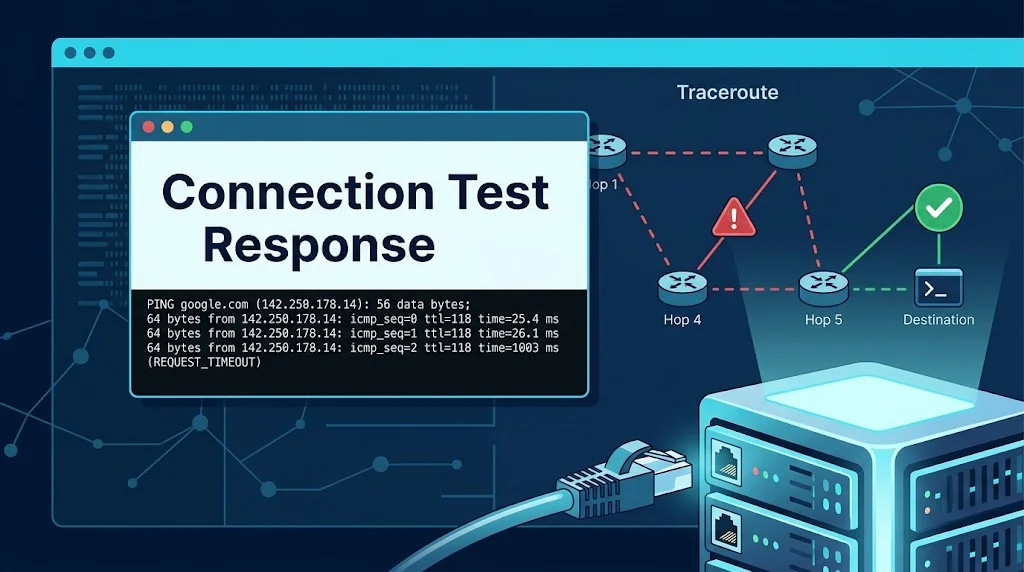
A connection test response tells you whether a device can reach a server. Common results include successful replies, timeouts, unreachable errors, and refused connections. Each result points to a different cause, from network issues to firewall blocks.
You type a command, run a test, or click a button. Then you wait for an answer. That answer is the connection test response, and it tells you whether your device can reach the other side.
Sometimes the response is clear. “Reply from 8.8.8.8: time=14ms” means everything is fine. Other times it is cryptic. “Request timed out.” “Destination host unreachable.” “Connection refused.” Each message points to a different problem.
Understanding what these responses mean saves time. Instead of guessing, you know whether to check your cable, your firewall, your DNS settings, or the remote server. This article breaks down the most common connection test responses, what causes them, and how to fix each one.
What Is a Connection Test Response?
A connection test response is the output you receive after sending a test request to another device or server. It tells you whether the connection succeeded, failed, or partially worked.
Connection tests come in many forms. The most common are:
- Ping: Sends an ICMP echo request and waits for a reply.
- Traceroute: Maps the path packets take to reach a destination.
- Telnet or Test-NetConnection: Tests whether a specific port is open.
- Curl or HTTP requests: Tests whether a web server responds.
- DNS lookup: Tests whether a domain name resolves to an IP address.
Each test returns a response. The response tells you something about the network path, the remote server, or both. Learning to read these responses is a core troubleshooting skill.
Common Connection Test Responses and What They Mean
Here are the most common responses you will see, what causes them, and what to check first.
Reply From [IP Address]: Time=Xms
This is the success response. Your device sent a request, the remote device received it, and it sent a reply back. The time value shows the round-trip latency.
A reply under 50ms is excellent. Between 50ms and 150ms is normal for most internet connections. Above 200ms suggests distance or network congestion.
If the time varies wildly between replies, you have jitter. Jitter causes choppy voice calls and lag in games.
Request Timed Out
The request was sent, but no reply came back within the timeout window. This is one of the most common failure responses.
Common causes:
- The remote device is offline.
- A firewall is blocking ICMP packets.
- The network path is broken somewhere between you and the destination.
- The remote device is too busy to respond.
Check whether the device is powered on. Then test whether other devices on the same network respond. If they do, the problem is specific to that destination.
Destination Host Unreachable
Your device could not find a route to the destination. The packet never left your local network, or it hit a router that did not know where to send it.
Common causes:
- Wrong IP address or hostname.
- The destination is on a different subnet with no route.
- Your default gateway is misconfigured.
- The remote network is down.
Check your IP configuration first. Then verify the destination address. If both are correct, the issue is likely in routing.
Destination Net Unreachable
Similar to host unreachable, but the problem is with the entire network, not a single host. Your device cannot find a route to the destination network.
This often appears when a VPN is misconfigured or when a route is missing from the routing table.
Connection Refused
The remote device received your request but actively rejected it. This is different from a timeout. The device is reachable, but nothing is listening on the port you tried to connect to.
Common causes:
- The service is not running on the remote device.
- The service is running on a different port.
- A firewall is rejecting the connection with a reset.
- The service is configured to reject connections from your IP.
Check whether the service is running. Then verify the port number. If both are correct, check the firewall rules on the remote device.
Connection Reset by Peer
The remote device accepted your connection, then closed it abruptly. This often happens when a service crashes mid-connection or when a firewall sends a TCP reset.
Common causes:
- The service crashed or restarted.
- A firewall or intrusion detection system reset the connection.
- The connection was idle for too long and the server closed it.
- A protocol mismatch between client and server.
Check the server logs for errors. If the server is healthy, check for firewall or IDS rules that may be resetting connections.
No Route to Host
Your device has no route to the destination. This is similar to destination host unreachable but often indicates a local routing problem.
Common causes:
- The destination is on a network your device does not know about.
- Your default gateway is down.
- A VPN tunnel dropped.
- A firewall is blocking the route.
Check your routing table. Then verify your gateway is reachable. If you use a VPN, check whether the tunnel is active.
Network Is Unreachable
The network itself cannot be reached. This often appears when your device has no network connection at all, or when the route to the destination network is missing.
Check your local network first. Can you reach your router? Can you reach other devices on the same subnet? If not, the problem is local.
TTL Expired in Transit
The packet’s time-to-live counter reached zero before it arrived. Each router along the path decrements the TTL. If the path is too long, the packet is discarded.
This response is normal in traceroute output. It shows you the path packets are taking. In ping, it suggests a routing loop or an unusually long path.
General Failure
This is a Windows-specific error. It usually means the network adapter is misconfigured or the destination is not reachable at all.
Common causes:
- The network adapter is disabled.
- An IP address conflict exists on the network.
- The destination address is invalid.
- A VPN or virtual adapter is interfering.
Check your adapter settings first. Then disable any VPNs and test again.
Connection Test Response: Ping vs Traceroute vs Port Test
Different tests return different responses. Knowing which test to use saves time.
Ping tests whether a device is reachable at the IP layer. It uses ICMP. A successful ping means the device is online and the network path works. A failed ping could mean the device is offline, or it could mean ICMP is blocked.
Traceroute maps the path packets take to a destination. It shows each hop along the way and the latency to each hop. It is useful for finding where a connection breaks.
Port test (using telnet, nc, or Test-NetConnection) checks whether a specific port is open. A successful connection means the service is running and reachable. A refused connection means the service is not listening. A timeout means a firewall is likely blocking the port.
HTTP test (using curl or a browser) checks whether a web server responds. It returns status codes like 200, 404, or 500. These tell you whether the server is working and whether the requested resource exists.
Use the right test for the question you are asking. Ping tells you if the host is alive. Traceroute tells you where the path breaks. Port tests tell you if a service is reachable. HTTP tests tell you if a web application is responding correctly.
How to Read a Traceroute Response
Traceroute output looks intimidating at first. It is actually straightforward.
Each line shows one hop along the path. The line includes the hop number, the IP address of the router, and three latency measurements.
Example:
text
1  192.168.1.1  1.2 ms  1.1 ms  1.3 ms
2  10.0.0.1     5.4 ms  5.2 ms  5.6 ms
3  * * *
4  203.0.113.5  22.1 ms 21.8 ms 22.4 ms
5  198.51.100.1 45.3 ms 45.1 ms 45.7 ms
The first hop is your router. The second is your ISP’s gateway. The third hop shows asterisks, meaning no response. This could be a router that does not respond to traceroute, or it could be a sign of packet loss.
The fourth and fifth hops show increasing latency, which is normal as packets travel farther.
If traceroute stops at a particular hop and never continues, the connection is breaking at that point. If latency jumps dramatically at one hop, that router may be congested.
Connection Test Response: Replies for IT Teams
When you report connection test results to your team, clear communication speeds up the fix. Here are examples of replies you can use.
Ping to 8.8.8.8 succeeds, but ping to the internal server times out. Checking firewall rules.
Use this when external connectivity works but internal does not.
Meaning: The problem is likely in the internal network or firewall.
Traceroute stops at hop 3. The ISP gateway is not forwarding packets. Opening a ticket with the provider.
Use this when the path breaks outside your network.
Meaning: The issue is upstream and requires ISP action.
Port 443 is refused on the web server. The service is not listening. Restarting the web service.
Use this when a specific port is unreachable.
Meaning: The service itself is down, not the network.
Connection reset by peer on the API endpoint. Checking server logs for crashes.
Use this when connections are being dropped mid-session.
Meaning: The server or a firewall is terminating the connection.
No route to host when connecting to the VPN subnet. The tunnel appears to be down.
Use this when a VPN connection is involved.
Meaning: The VPN tunnel needs to be re-established.
Intermittent timeouts on the database connection. Checking for network congestion.
Use this when the failure is not consistent.
Meaning: The issue may be load-related or intermittent.
DNS resolves correctly, but ping fails. Checking whether ICMP is blocked.
Use this when name resolution works but reachability does not.
Meaning: The host may be online but blocking ping.
All tests pass from the office but fail from the remote site. Checking the site’s firewall rules.
Use this when the problem is location-specific.
Meaning: The remote site’s network configuration is the likely cause.
Connection Test Response: Replies for Customer Support
Customers do not need technical detail. They need a clear explanation and a next step.
We could not reach the server from your device. Please check your internet connection and try again.
Use this for a general connection failure.
Meaning: The user gets a simple instruction.
The connection test timed out. This often means the server is temporarily unavailable. Please retry in a few minutes.
Use this when the server may be down.
Meaning: The user knows to wait and retry.
Your device could not find the server. Please check that you typed the address correctly.
Use this when a wrong address is likely.
Meaning: The user gets a specific thing to check.
The service refused the connection. Please make sure the app is updated to the latest version.
Use this when an outdated client is the likely cause.
Meaning: The user knows to update.
Try restarting your router and running the test again.
Use this for local network issues.
Meaning: The user gets a concrete troubleshooting step.
If you are on a VPN, please disconnect and try again.
Use this when a VPN may be interfering.
Meaning: The user knows to test without the VPN.
We are aware of connection issues affecting some users. Our team is working on a fix.
Use this during an ongoing outage.
Meaning: The user knows the problem is acknowledged.
Thank you for your patience. The connection issue has been resolved. Please try again.
Use this for a final update.
Meaning: The user is informed that the issue is closed.
Copy-Ready Templates for Connection Test Reports
These templates are ready to use. Replace the placeholders with your details.
Template: Ping Test Report
text
Target: [IP address or hostname]
Packets sent: [Number]
Packets received: [Number]
Packet loss: [Percentage]
Minimum time: [ms]
Maximum time: [ms]
Average time: [ms]
Result: [Success / Timeout / Unreachable]
Notes: [Any relevant context]
Template: Traceroute Report
text
Target: [IP address or hostname]
Hop 1: [IP] [Latency]
Hop 2: [IP] [Latency]
Hop 3: [IP or * * *] [Latency]
...
Result: [Completed / Stopped at hop X]
Notes: [Any relevant context]
Template: Port Test Report
text
Target: [IP address or hostname]
Port: [Number]
Protocol: [TCP / UDP]
Result: [Open / Refused / Timeout]
Notes: [Any relevant context]
Template: Support Ticket Reply
text
Hi [Name],

Thank you for reporting this. We ran a connection test and received the following result: [result].

This usually means [simple explanation].

Please try [suggested action]. If the issue continues, reply to this message and we will investigate further.

Best regards,
[Your name]
Common Mistakes When Running Connection Tests
Even experienced technicians make these mistakes. Avoiding them saves time.
Assuming a failed ping means the host is down. Many servers block ICMP. A failed ping does not always mean the device is offline. Try a port test instead.
Testing only one destination. A single failed test does not tell you whether the problem is local or remote. Test multiple destinations.
Ignoring DNS. If a hostname does not resolve, the connection test will fail before it even starts. Always verify DNS first.
Forgetting about firewalls. A firewall can block ping, block ports, or reset connections. Check firewall rules on both sides.
Not testing from multiple locations. A connection that fails from your office may work from another network. Test from different vantage points.
Overlooking IPv6. If your device prefers IPv6 and the destination only supports IPv4, the connection may fail. Check which protocol is being used.
Using the wrong port. A service may be running on a non-standard port. Verify the correct port before concluding the service is down.
Not documenting results. Connection tests are only useful if you record the results. Keep logs for comparison.
Best Practices for Connection Testing
Good connection testing follows a few simple principles.
Start local. Test your own device first. Can you reach your router? Can you reach other devices on the same network?
Test incrementally. Work outward from your device. Ping the gateway, then an external IP, then the destination.
Use multiple tools. Ping, traceroute, port tests, and HTTP tests each answer different questions.
Test at different times. Intermittent issues may not appear in a single test. Run tests over time.
Record baselines. Know what normal looks like so you can recognize when something changes.
Check both directions. A connection that works from A to B may not work from B to A. Test both ways.
Document everything. Record the test, the time, the result, and any changes you make.
FAQs
What does “request timed out” mean in a connection test?
It means your device sent a request but received no reply within the timeout window. The remote device may be offline, a firewall may be blocking the request, or the network path may be broken.
Why does ping work but a port test fails?
Ping tests whether the host is reachable at the IP layer. A port test checks whether a specific service is listening. The host can be online while the service is down or blocked by a firewall.
What is the difference between “connection refused” and “request timed out”?
Connection refused means the remote device received your request but rejected it, usually because no service is listening on that port. Request timed out means no reply came back at all, often because a firewall is silently dropping packets.
How do I test whether a specific port is open?
Use telnet, nc, or Test-NetConnection (Windows). For example, telnet example.com 443 tests whether port 443 is open. A successful connection means the port is open. A refused connection means it is closed.
Why does traceroute show asterisks?
Asterisks mean no response was received from that hop. This can happen when a router is configured not to respond to traceroute requests. It does not always indicate a problem.
Can a VPN cause connection test failures?
Yes. A VPN changes your routing and can block or redirect traffic. If connection tests fail while a VPN is active, disconnect the VPN and test again.
What does “no route to host” mean?
It means your device has no route to the destination. This often indicates a routing problem, a down gateway, or a dropped VPN tunnel.
How do I fix a connection test failure?
Start by checking your local network. Then verify the destination address and port. Check firewall rules on both sides. Test from multiple locations. If the problem persists, contact your network administrator or ISP.
Conclusion
A connection test response is more than a pass or fail. It tells you where the connection broke and why. Learn to read the common responses, use the right test for the question, and document your results. When you understand what each response means, troubleshooting becomes faster and more accurate.
Read More Related Articles :
- 350+ Cold Emails That Get Responses | Proven Templates, Tips & Examples In 2026
- 350+ How to Calculate Response Rate | Formula, Examples & Easy Guide In 2026
- 350+ Cold Email Response Rate | Benchmarks, Averages & Ways to Improve In 2026

Robert Bennett is a passionate writer and blogger who turns everyday ideas into engaging stories and thoughtful insights.
Writing for RespondLabs.com, he brings a clear, relatable voice to topics that matter.